Why we export self-contained HTML for OBS Browser Source
Stream Overlays ships a local HTML file you own — not a hosted widget that disappears when a server blinks. Here's what self-contained export means and why it matters for OBS.
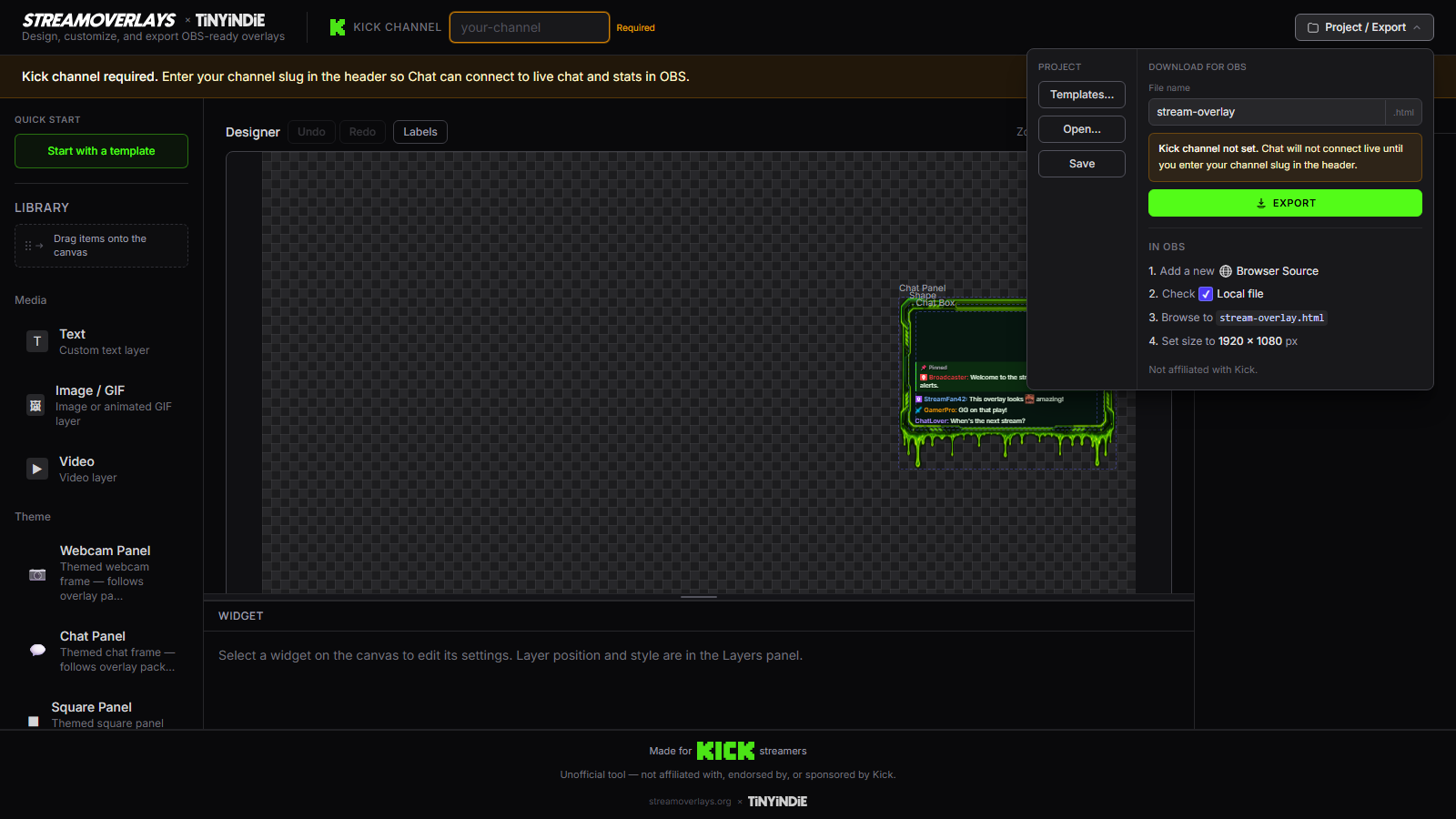
When you export from Stream Overlays, you get a file — not a login, not a cloud dependency, not a "paste this embed code and hope our servers stay up" widget.
Self-contained HTML means the overlay page runs from your disk. OBS loads it through Browser Source. Live Kick chat and stats are bundled into that export so your stream graphics and your chat layer live in one branded file you control.
What "self-contained" actually means
A self-contained export includes everything the overlay needs to render:
- Layout HTML and styles for your frames, text, and zones
- Kick chat wiring for your channel slug
- Live stats widgets where the template includes them
- Relative asset paths when you choose ZIP export (images and fonts travel with the HTML)
You save the file locally — Documents/StreamOverlays/my-chat-overlay.html or similar — and point OBS at that path. The overlay does not phone home to Stream Overlays during your stream.
HTML vs ZIP
Single HTML file — fastest path. Great for overlays that use web fonts and inline styles without extra image assets.
ZIP with assets — use when your overlay includes uploaded images, custom logos, or other files the HTML references. Unzip somewhere stable on your machine and point OBS at the index.html inside.
Both formats target the same OBS workflow: local file → Browser Source → done.
Why not a hosted widget?
Hosted chat widgets work until they don't — API changes, account lockouts, dashboard downtime, or a platform policy shift. A local HTML overlay is boring in the best way. It loads from your SSD. You version it like any other stream asset.
Paid overlay packs have the opposite problem: pretty once, dead the moment you want different chat placement or colors. Self-contained HTML splits the difference — live Kick data like a widget, ownership like a file you keep.
Drop it into OBS
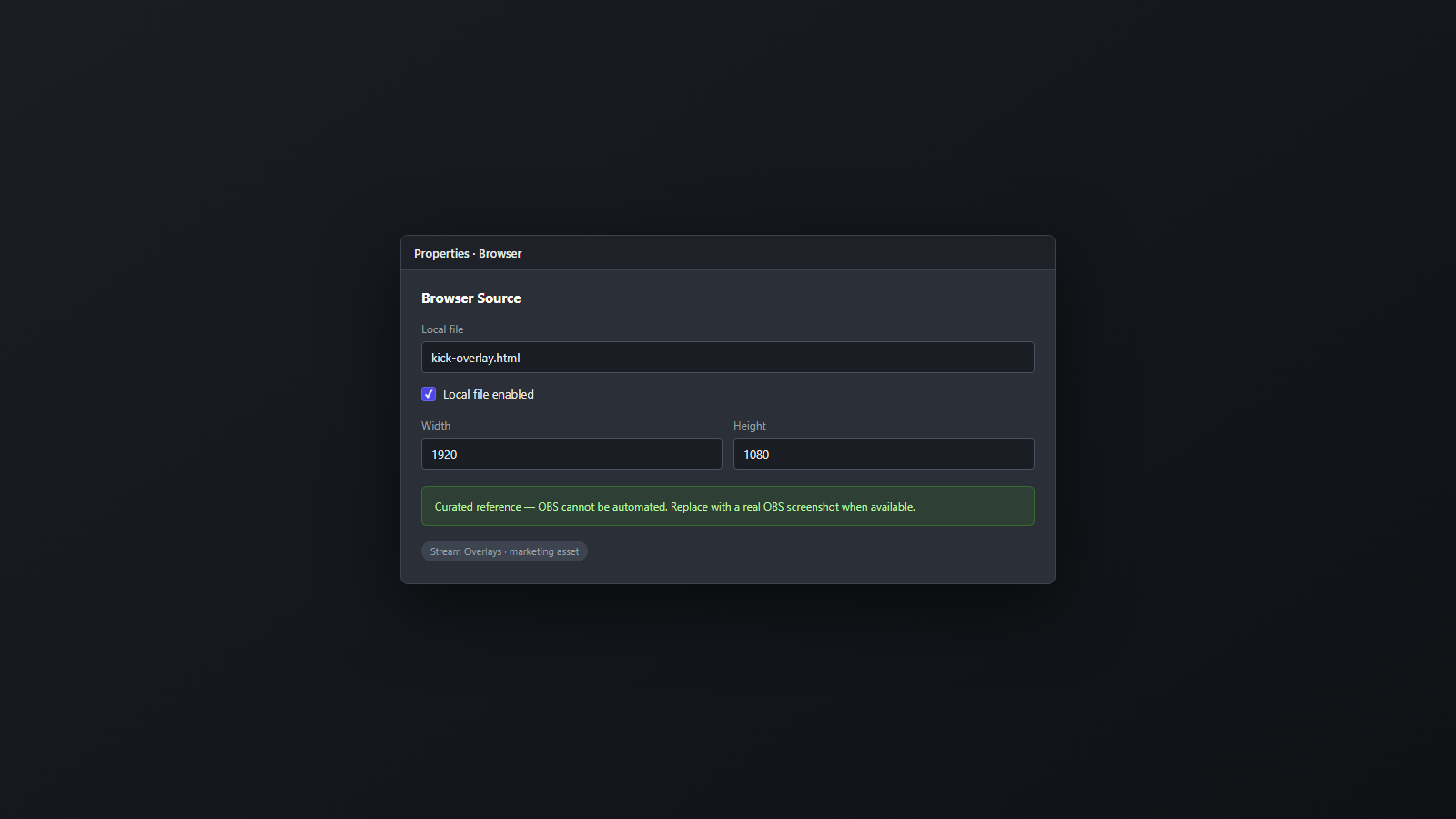
The export is only half the job. OBS needs a Browser Source aimed at your local file with sensible width and height (usually 1920×1080 for full-canvas overlays, or the dimensions shown in the builder).
Our step-by-step guide walks through Browser Source setup, local file paths, and the "shutdown source when not visible" toggle that saves GPU on single-PC streams:
The loop, end to end
- Design in the builder (or start from a template).
- Export HTML or ZIP.
- Save to a folder you won't accidentally delete.
- Add Browser Source in OBS → browse to the file.
- Go live — chat and stats run from your export.
That's the product thesis: make the overlay, export the file, own it forever. Free means the export ships — not a demo that nags you to subscribe.
Have an overlay ready to export? Open the builder and download your Browser Source file.